Blob Storage Setup
Use the Global Search, which can be accessed via shortcut Alt + Q or the Search Symbol, filter for doc.box Setup and open the page.
In the following Screenshot you can see the fields necessary to set up Azure Blob Storage for the doc.box:
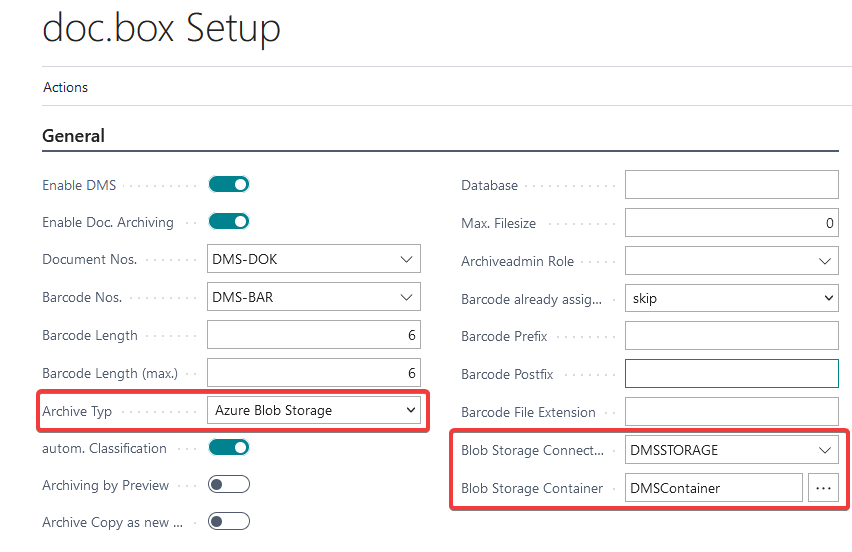
- Archive Type:
Here you can see all the possible storage options for the acadon_doc.box. In the case of Azure-usage, please select Azure Blob Storage. - Blob Storage Connection:
By clicking on the down-arrow and then clicking on Select from full list you can see the available connection types. If you don't have a connection for the doc.box yet, see the instructions further down. - Blob Storage Container: Similar to a regular file system, you can create a drive-based structure in Azure Blob Storage, too. You can create a container (a new "drive") that contains your EDI documents and a seperate one that containes your archive, all in a single Blob Storage. Once you click on the three dots, a list of possible options will be shown to you when the connection in the field Blob Storage Connection is set up properly. Then just select the Container that will contain your documents saved in the acadon_doc.box.
Blob Storage Connection Setup
Open the list of Blob Storage Connections by clicking on the down-arrow in the field Blob Storage Connection and expanding via Select from full list.
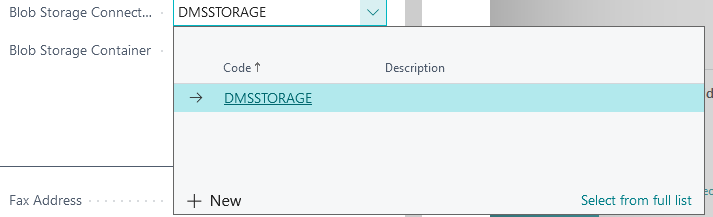 Once you have the list open, click on New. Here you'll be greeted with the following card:
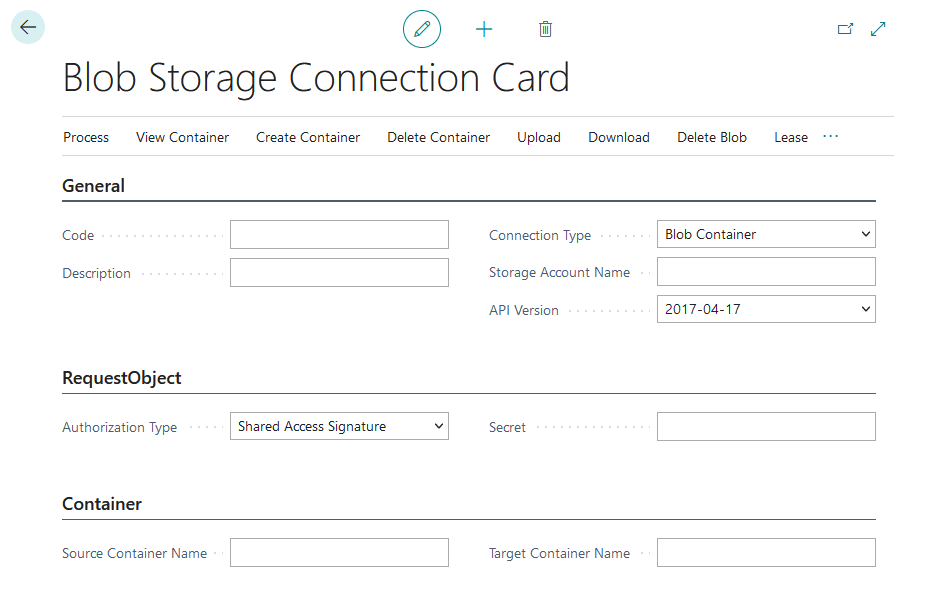
- Code:
Like other setup pages, you can set an unique identifier for your new Blob Storage Connection. In the previous examples, the field Code was set to DMSSTORAGE. - Description:
Like other pages, you can give your new Blob Storage Connection a small description so you know for what it's used. In the previous example, this field was emtpy. - Connection Type:
This field has two possible options, Blob Container and File Share. Even though File Share is a possible value, the acadon_doc.box only supports Blob Container right now. If you set this to File Share, your newly set up Blob Storage Connection won't be shown in the possible options on the doc.box Setup. - Storage Account Name:
In this field the name of the Storage Account is required. You can find this in your Azure Portal where you set up the Azure Container: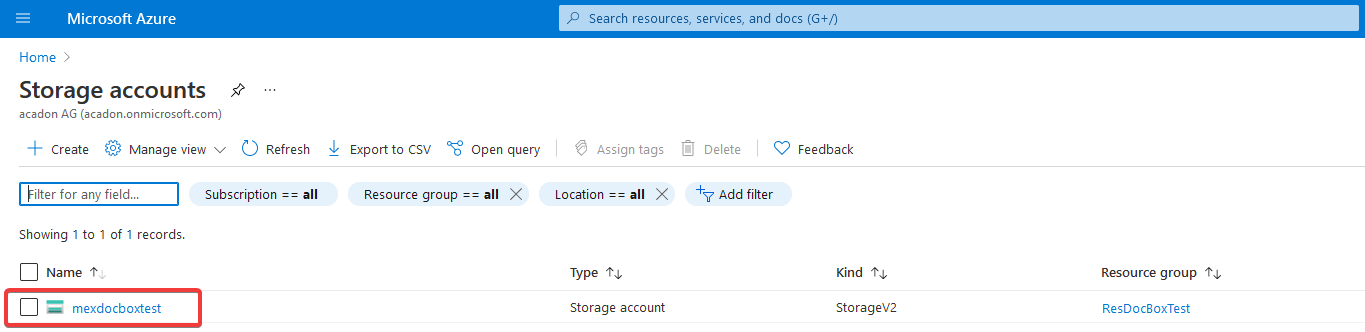
- Authorization Type:
There are two possible ways to set up the authorization for the Blob Storage Connection. It is highly recommended to use the Shared Access Signature instead of Shared Key. With the doc.box Setup you have the options to give it the correct permissions with an expiry date, if necessary. - Secret:
You can create a new one in the Azure Portal. An example with suggested permissions will look like this: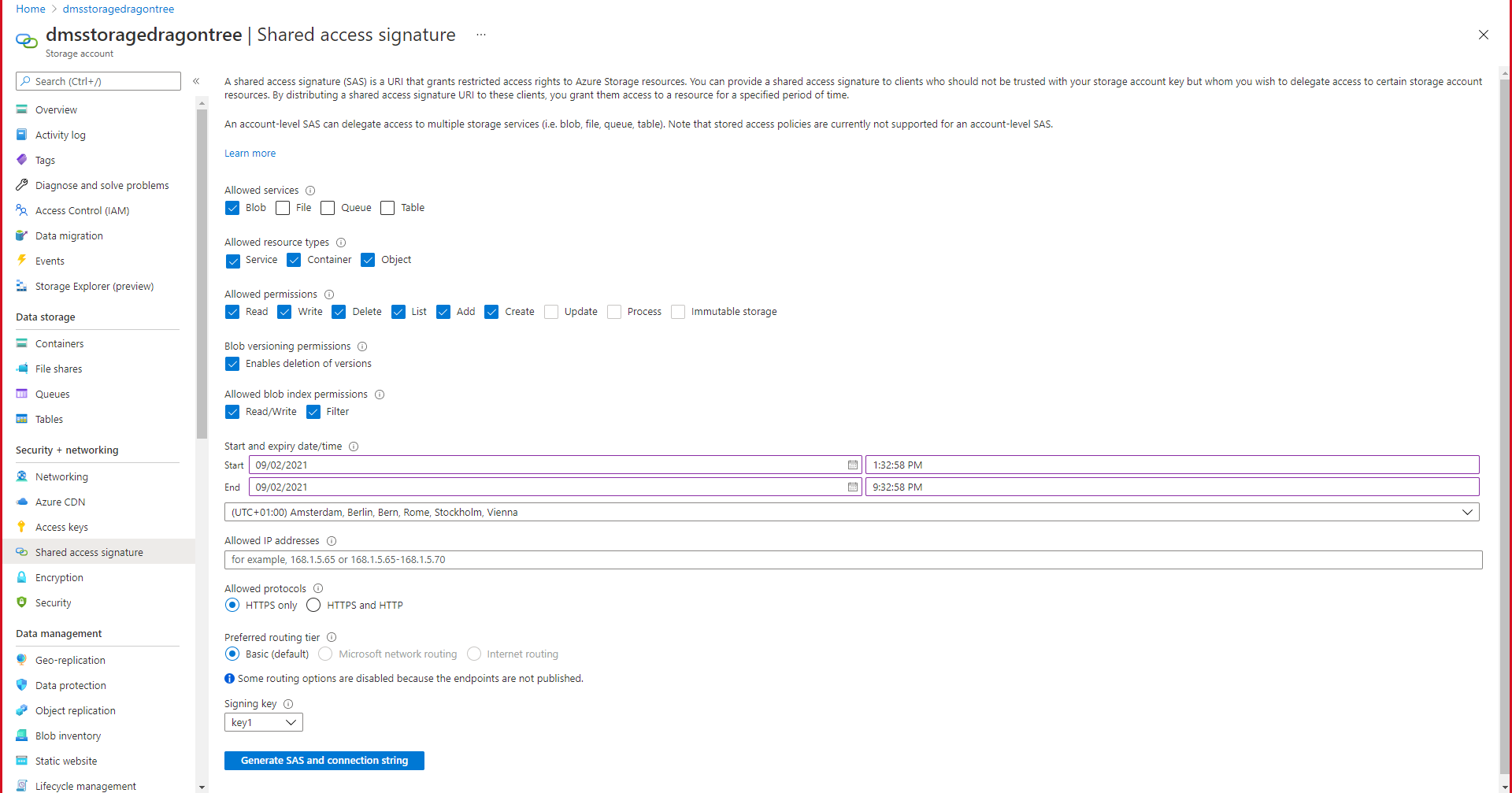 Once generated, the result will look like this:
 Make sure to copy the SAS token without the questionmark in the beginning!
The other fields in the setup page aren't necessary for the acadon_doc.box.
Creating a Blob Storage Container
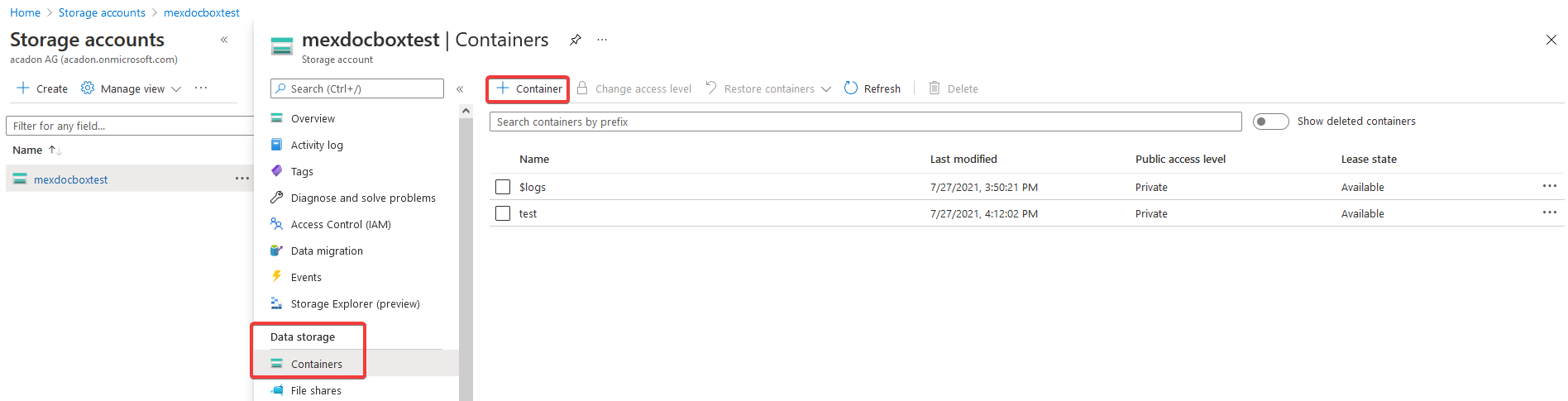
Once your connection is set up, you can either create a container by filling the field Source Container Name with the desired name and then executing the action Create Source Container (available in the category Create Container) or simply doing this in the Azure Portal itself:
Pricing
The Azure Pricing is a bit complicated to figure out because there are several factors affecting it:
- Storage Size
- Bandwith Usage
- Storage Usage
Storage Size
In Azure, the pricing is always calculated by your current storage usage. With the exception of the "long-term renting" shown later, you'll pay for your definite usage instead of having a fixed pricing for a fixed storage.
Azure calculates the current cost on a regular basis (e.g. daily), so the storage will get more expencive over time.
An example may look like this:
| Day | Storage Size | Storage Price |
|---|---|---|
| 1 | 80GB | 0.049€ |
| 2 | 84GB | 0.052€ |
| 3 | 90GB | 0.056€ |
If we assume that your billing cycle is 3 days, you pay a total of 0.157€ (Day 1 + Day 2 + Day 3) instead of 0.163€ (Day 3 x 3).
Bandwith Usage
Currently there are two different ways your Business Central system may be set up, either fully hosted in the cloud or you are hosting it On Premise on your own machine.
As long as cloud storage is in the same region as the Business Central instance, it's free of charge, so it's highly recommended (not only due to pricing, but also due to performance) to host them in the same region.
The difference between Cloud and OnPrem does not affect the Azure pricing, but it may affect the way where the costs are shown (more on that later):
- Cloud: Blob Storage (Azure) -> Service Tier (External) -> End User
- OnPrem: Blob Storage (External) -> Service Tier (internal/customer network) -> End User
The nodes mentioned with "External" are the ones that count as Bandwith Usage for pricing in Azure.
Every time you open a document or store a document there's going to be data transfer happening.
The current Azure Bandwith pricing is the following:
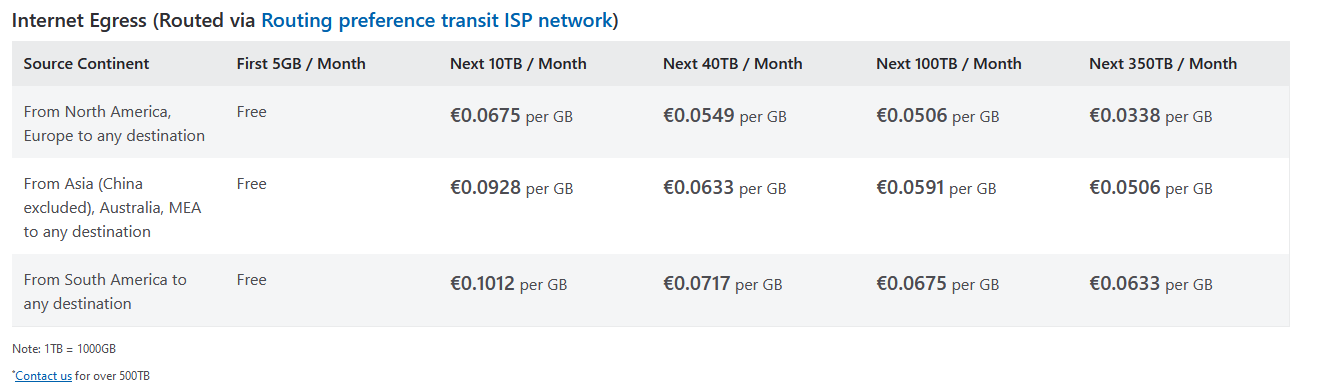 As you can see, the first 5GB are free each month, each additional GB will cost money (depending on the region).
Because of the variety of customers we have, we have to calculate it individually each time.
As you can see, the first 5GB are free each month, each additional GB will cost money (depending on the region).
Because of the variety of customers we have, we have to calculate it individually each time.
As example:
| New Documents | Access Per Document | Average Size | Total GB | Total Cost |
|---|---|---|---|---|
| 120 | 4 | 2MB | 0.96GB | 0€ |
| 120 | 8 | 3MB | 2.88GB | 0€ |
| 2230 | 3 | 1MB | 6.69GB | 0.14€ |
| 3154 | 4 | 8MB | 100.93GB | 6.48€ |
Storage Usage
Not only does the storage itself is reflected in the price, accessing it with different operations is, too. Each kind of access, for example read access and write access, count as a operation in Azure:
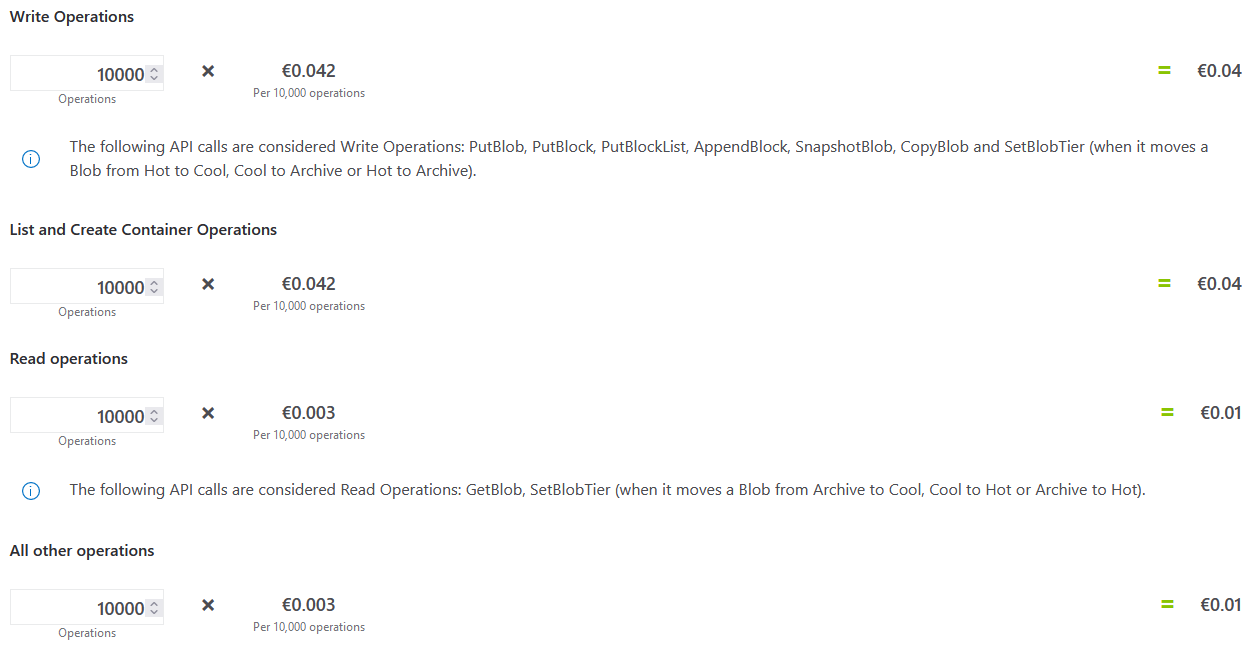 In theory, those aren't as relevant as the other costs because they're counted in an interval of 10.000 and even with 100.000 for each operation (which should be more than enough) you'll be at around 0.90€.
Difference between OnPrem and Cloud
Depending on how your Business Central is hosted, the pricing seen in the Azure Portal may be at different places:
If you host it in the Cloud, the monthly cost will be applied to the Data Transfer of the Service Tier machine, because that's the "starting location" of external data transfer.
If you host it On Premise, the monthly cost will be shown directly for the Azure Blob Storage.
Calculating the monthly growth of the database
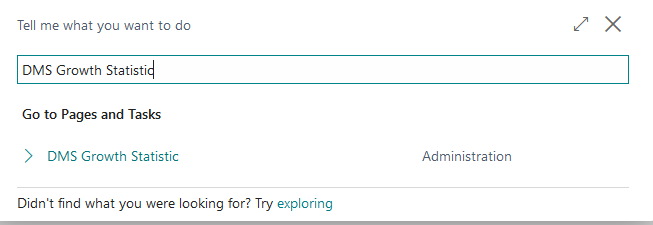
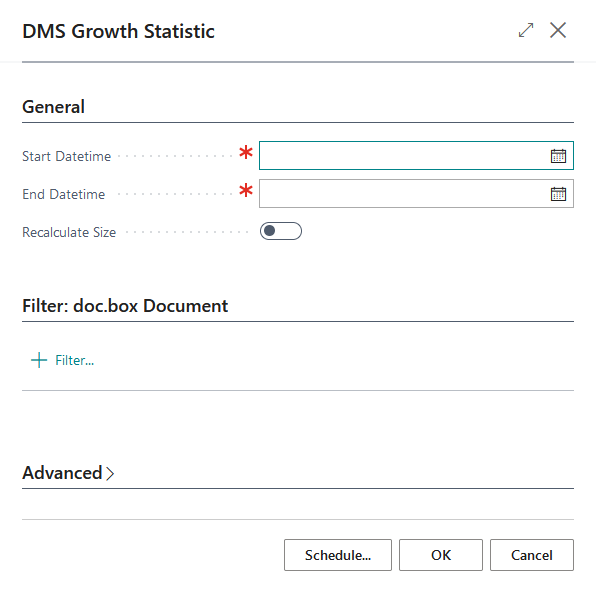
To get an average idea by how much your storage increases we added a report named "DMS Growth Statistic".
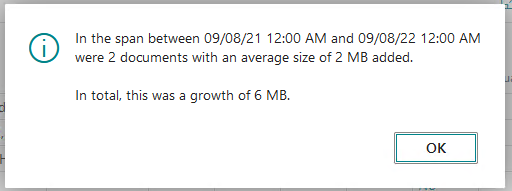
You can set a custom timespan (for example, the last month) and it checks how many new documents with the average size were added. Then it checks those values against the total amount of documents with the average size calculated in the earlier step and results an average percentage of the data increase in the customly defined timespan:
Examples (monthly)
| Current Size | Average Doc. Size | Increase | Access | Storage Cost | Bandwith Cost | Operation Cost | Total Cost |
|---|---|---|---|---|---|---|---|
| 20GB | 3MB | 0.4GB | 4x/Document | ~0.38€ | 0.00€ | 0.90€ | 1.28€ |
| 130GB | 7MB | 2.6GB | 7x/Document | ~2.46€ | 0.95€ | 0.90€ | 4.31€ |
| 300GB | 7MB | 15GB | 11x/Document | ~5.84€ | 10.80€ | 0.90€ | 17.54€ |
| 1.3TB | 16MB | 32GB | 3x/Document | ~24.71€ | 6.15€ | 0.90€ | 31.76€ |
Azure Storage Reserved Capacity
With Azure Blob Storage, you have the possibility to reserve capacity for 1 year or 3 years.
Depending on what you chose, you can save up to 38%. However, you have to know the amount of space needed in advance to make use of this.
Further Information
Azure Pricing Calculator
Guide to Blob Storage Pricing by Microsoft